Web Dashboard
Clawrium ships with a local web dashboard that mirrors most of the CLI but renders it visually. Launch it with one command, and use it instead of the CLI when you'd rather click than type.
clawctl server start
The server binds to 127.0.0.1:36000 only — it is never reachable from the network. Use clawctl server stop to shut it down. For foreground/supervisor mode (systemd, Docker), use clawctl server run.
Prefer the terminal?
clawctl tuigives you the same fleet overview without leaving the shell.
Watch: 75-second tour
A narrated walkthrough of every tab in the dashboard — Dashboard, Agents, Topology, Providers, Skills, Integrations, Settings. The rest of this page is the reference detail for each tab.
Dashboard
The landing page at / is the fleet at a glance: total agents, running count, configured providers, 24-hour token usage, estimated cost, and a token-usage chart. A table at the bottom lists each agent with status, type, host, model, and uptime.
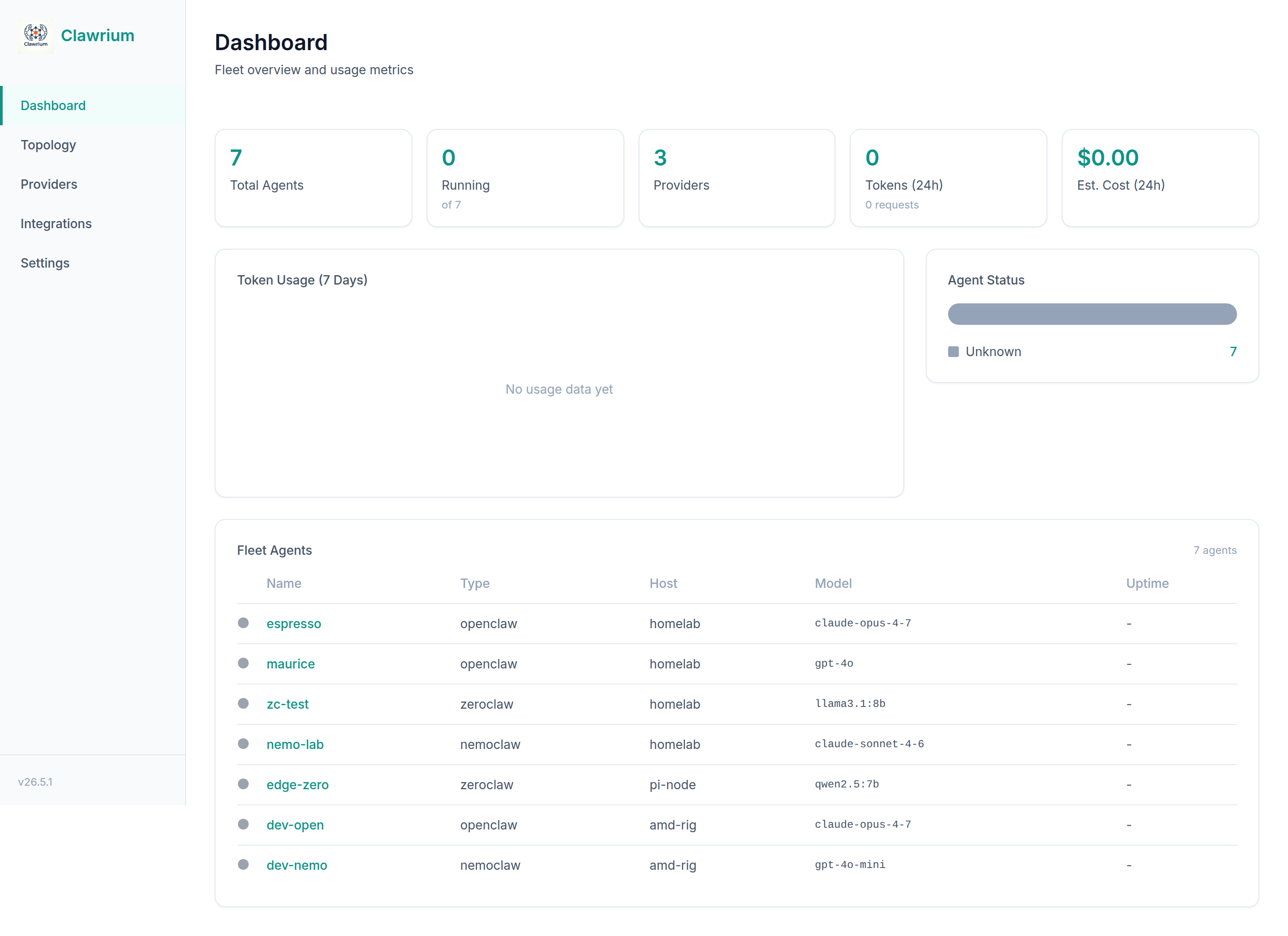
Click any agent name in the table to drop into Agent Detail.
Topology
The topology view renders the control plane (your machine running clawctl) and every fleet host as nodes, connected by SSH edges. Each host node lays its agents out as a row of column cards across the top, with a host strip at the bottom showing the alias, user@hostname, and hardware badges.
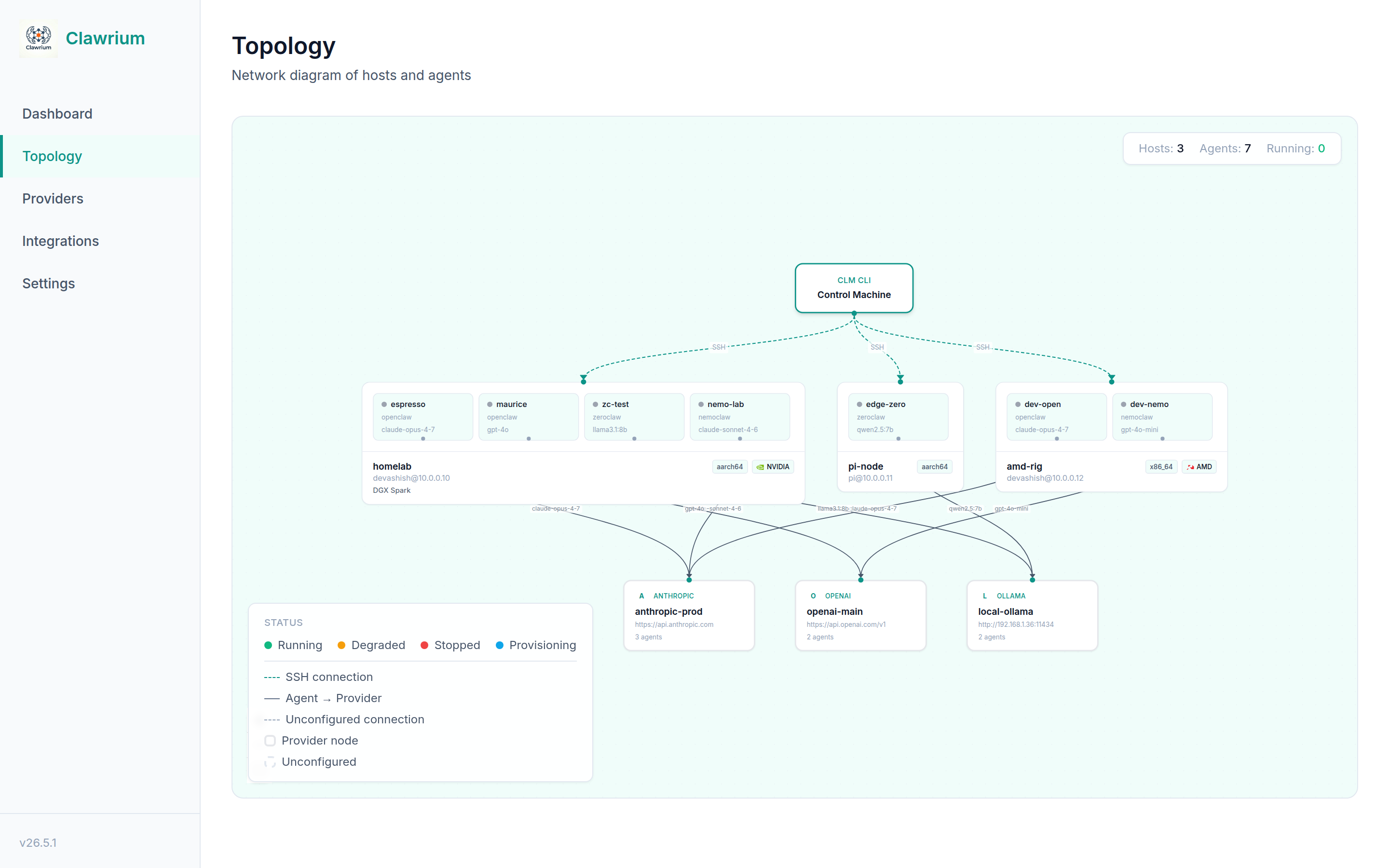
Hosts widen automatically with the number of agents they run, so a homelab with four agents will be visibly wider than a single-agent edge box without colliding with its neighbours. Provider edges originate from each agent's bottom handle and carry the agent's model name as a small label, so you can trace which model a given agent talks to without opening a panel.
Each host strip surfaces hardware information sourced from ansible facts when the host was added or refreshed:
- Architecture badge —
x86_64,aarch64, etc. - GPU badge — NVIDIA / AMD / Intel logo with vendor name when a GPU is detected. NVIDIA system hosts (e.g. DGX Spark) also surface the product name as a sub-line under the user/hostname.
Hardware data is best-effort. Older hosts added before this metadata existed will simply render without the badges — there's no error state.
Click a host strip to see its configuration; click an agent card to jump to its detail page.
Providers
The providers page lists every configured LLM provider with the model it defaults to and whether an API key is on file. Below the configured list, a searchable model catalog covers the providers Clawrium ships support for, so you can pick a model before wiring up a new provider.
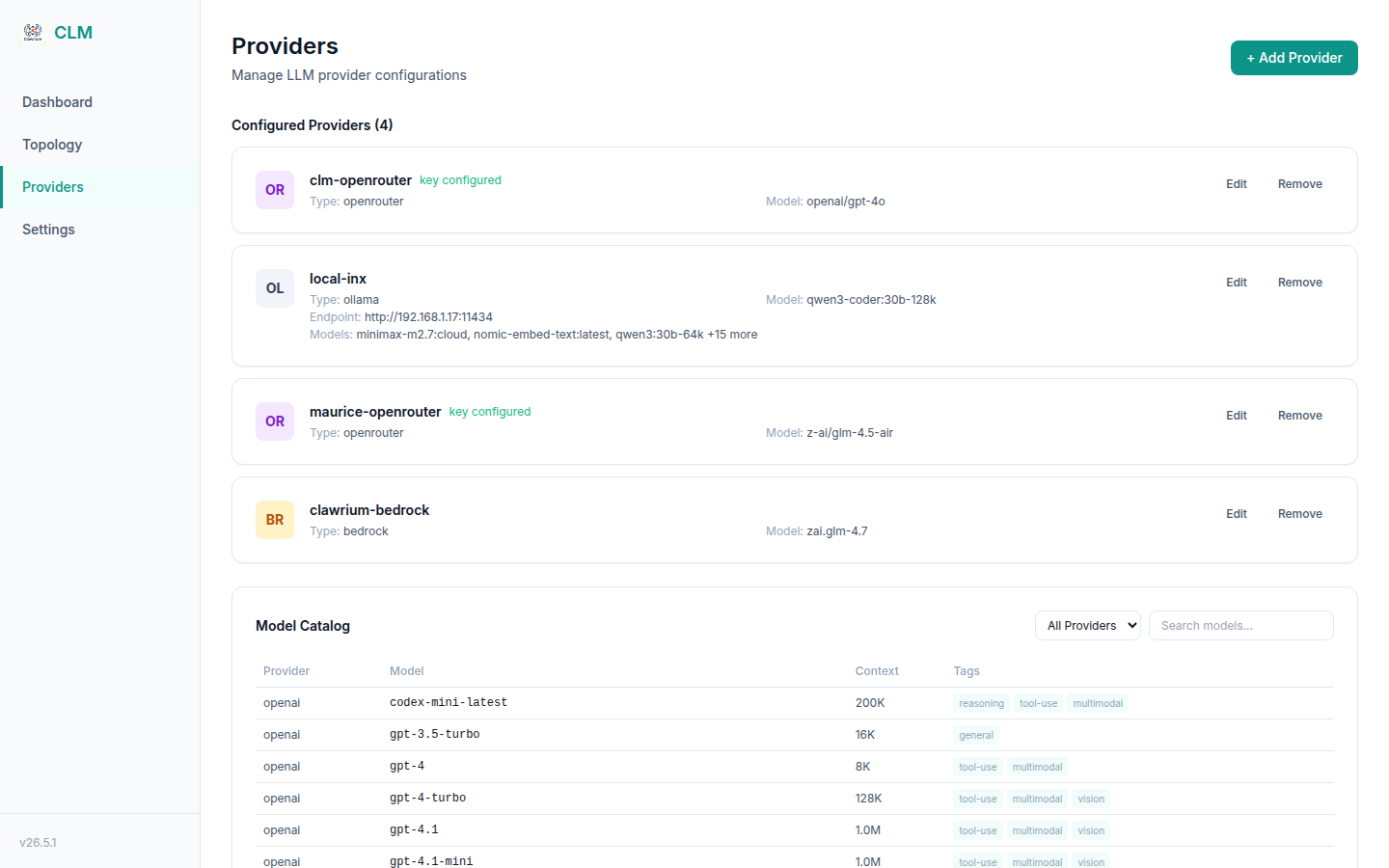
Use + Add Provider to register a new provider; Edit to rotate API keys or change the default model.
Integrations
The integrations page is the visual counterpart to clawctl integration. It lists every configured integration with its type, the number of agents that reference it, and whether all required credentials are set.
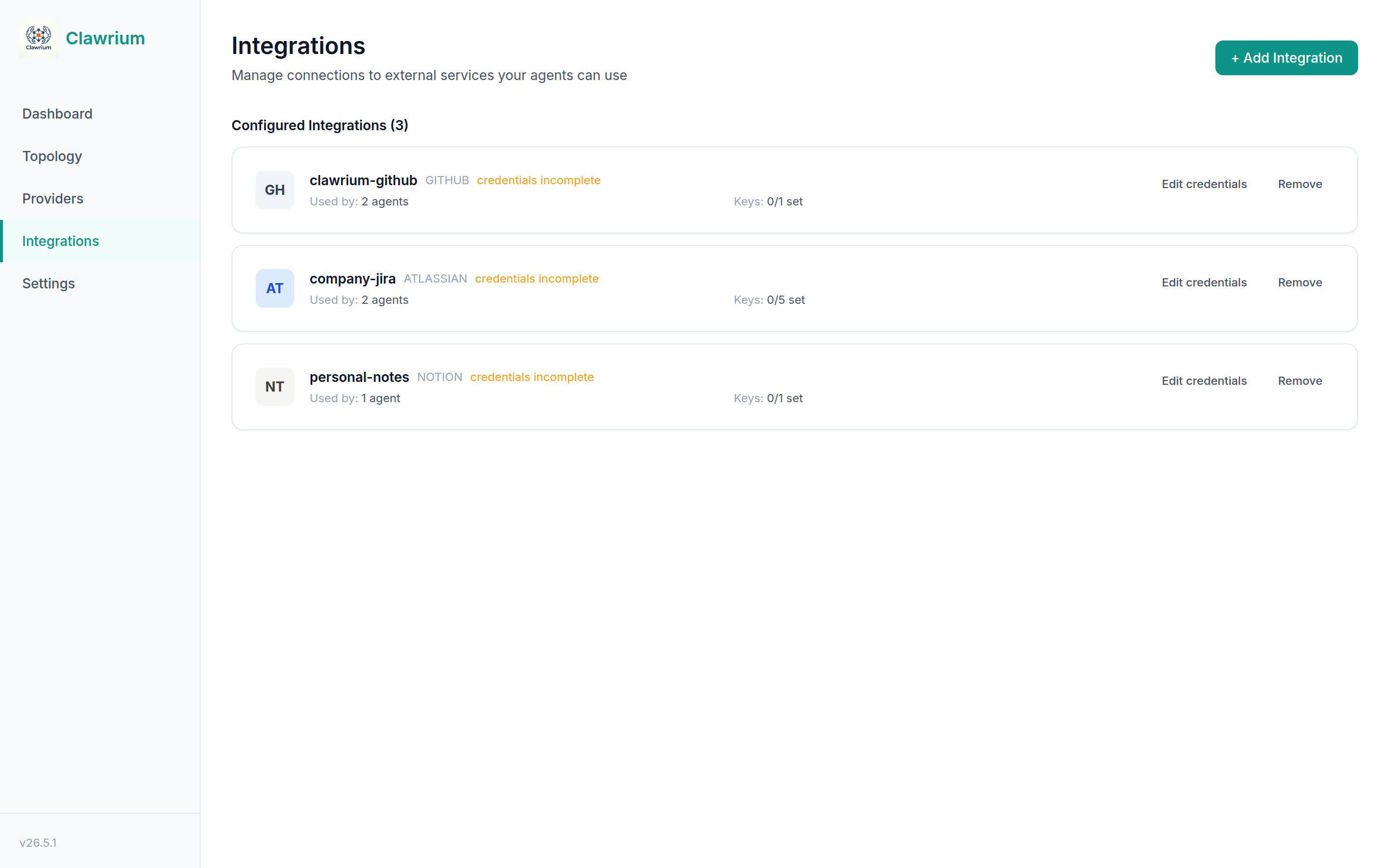
Add Integration opens a modal that renders the credential fields for the selected type. Fields whose key matches /token|key|secret|password|api/i are masked as password inputs; required fields are marked with *.
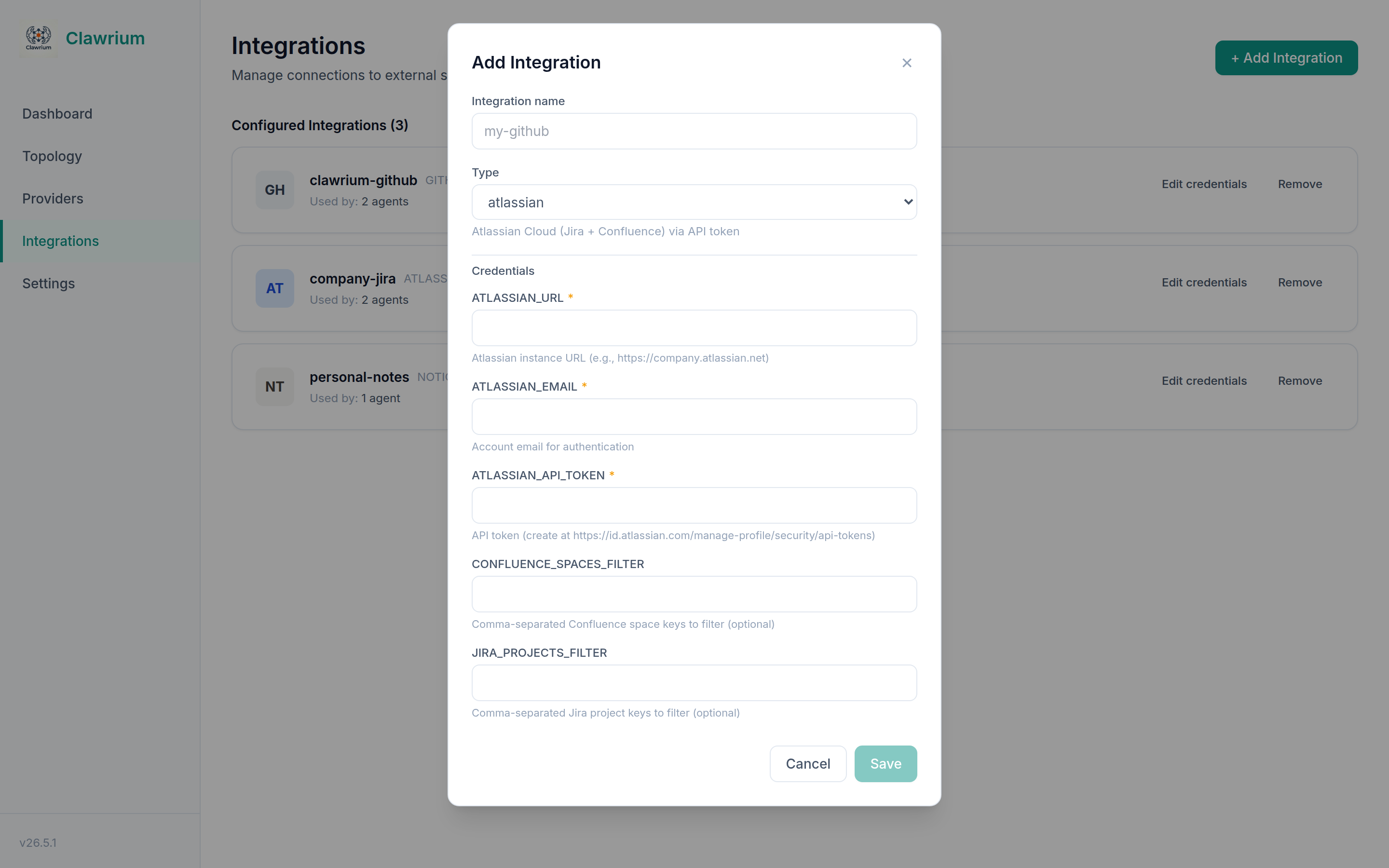
Edit credentials re-prompts only for credential values, marking each known key as (set) or (not set) and accepting blank inputs as "leave unchanged" — useful for rotating a single token without re-typing the others.
Remove blocks deletion when the integration is assigned to any agent and lists the referencing agents in the confirmation modal. Use clawctl integration or the agent configuration UI to unassign first.
Credential values are never sent to the browser — the API returns only the credential key names and a list of which keys are configured. The page reads agent_count from the list endpoint, computed in a single pass over hosts.json, so a row's "used by" count is accurate without N+1 requests.
Agent Detail
Click any agent to land on its detail page. The header shows status, host, model, version, and Restart / Stop controls. Tabs below switch between Chat, Configuration, Skills & Tools, Memory, and Logs.
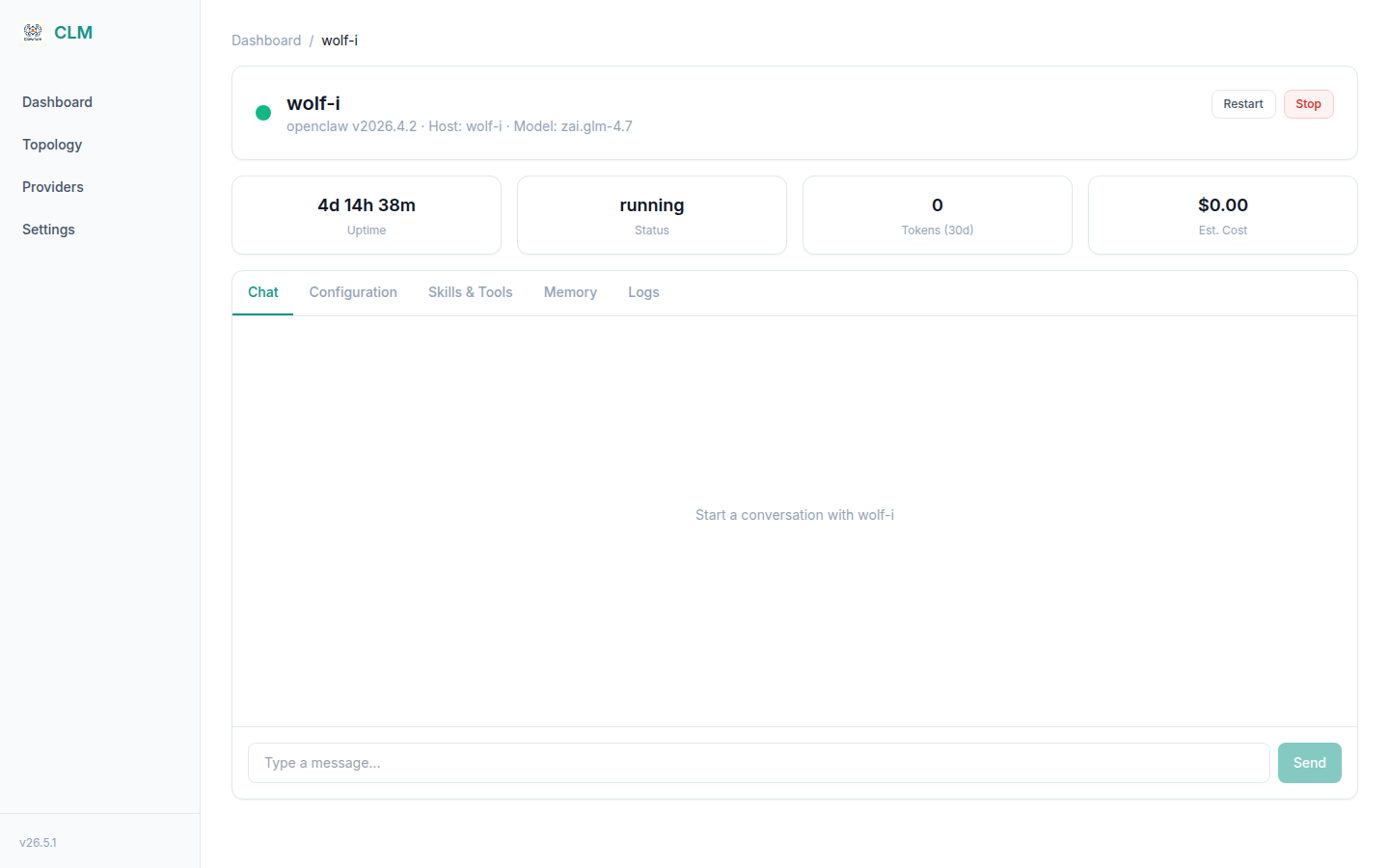
- Chat streams responses from the agent (OpenAI-compatible HTTP for hermes, WebSocket for openclaw — all proxied server-side; credentials never reach the browser).
- Configuration mirrors
clawctl agent show <name>: provider, gateway URL, device ID, onboarding state, version. - Memory lets you read and edit the agent's memory files in place (saves over SSH).
- Logs tails
journalctl --user -u <agent-type>-<agent-name>from the host.
Settings
The settings page surfaces install paths, the token-tracking SQLite location, and a Danger Zone for destructive actions.
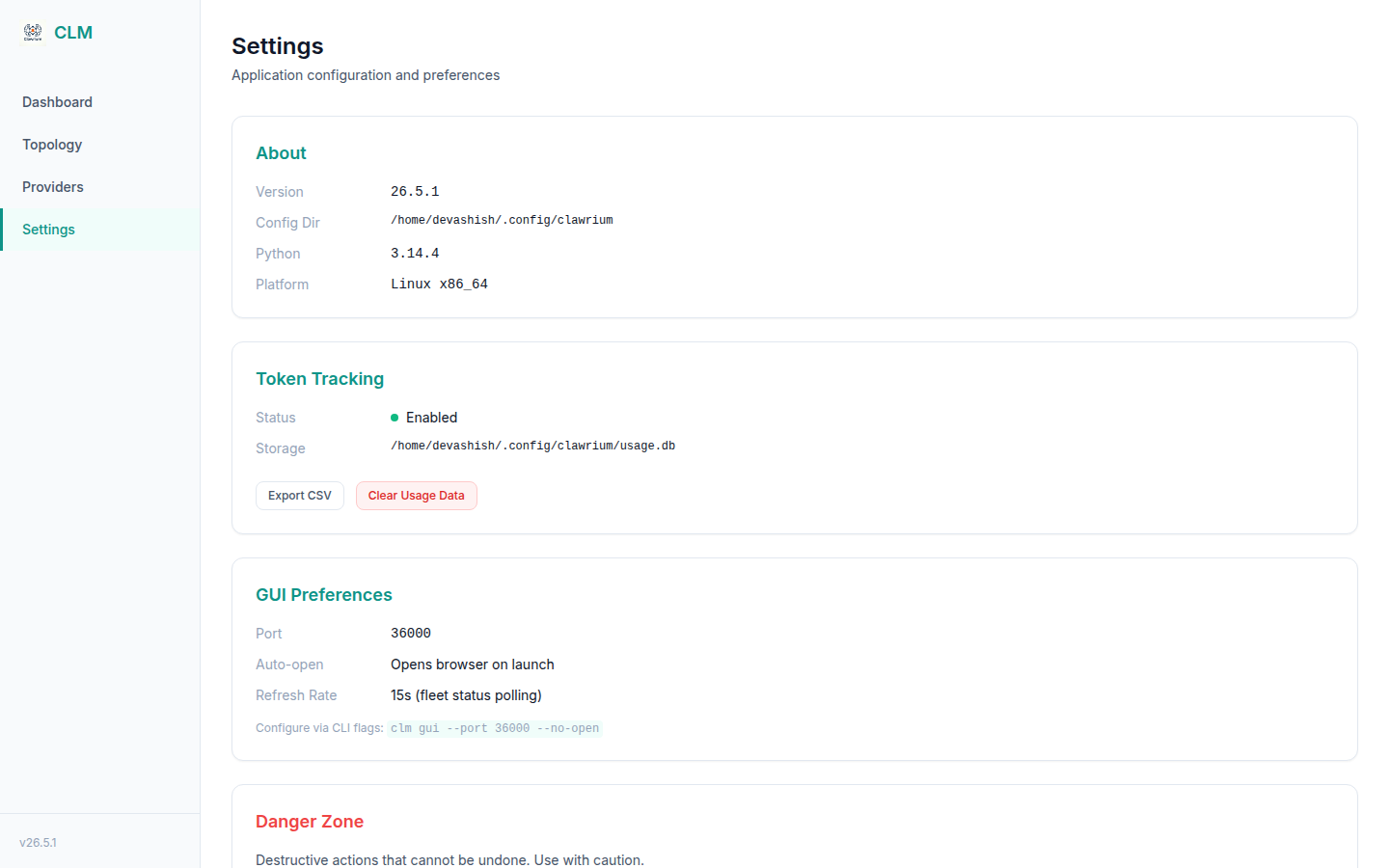
- Token Tracking — Export usage as CSV or clear the usage DB.
- GUI Preferences — Documents the CLI flags that drive GUI behavior (
--port,--no-open). - Danger Zone — Reset is intentionally disabled in this release. Until the reset wiring lands, use
clawctl host/clawctl agent/clawctl providerto remove config from the CLI.
When to use the GUI vs. the CLI
| Task | Best surface |
|---|---|
| Quick "what's running where?" | GUI dashboard or clawctl agent get |
| Visual topology, especially with many hosts | GUI topology |
| Browsing the model catalog | GUI providers |
| Adding an integration and pasting in credentials | GUI integrations |
| Rotating a single integration credential | GUI integrations → Edit credentials |
| Chatting with an agent without SSHing | GUI agent detail |
| Bulk install / configure / start | CLI — automatable and scriptable |
| Scripting integration creation in onboarding flows | CLI clawctl integration registry create |
| CI, headless servers, SSH-only boxes | CLI — the GUI server is local-only by design |
The GUI is a read-leaning convenience layer; the CLI remains the source of truth for lifecycle operations.
Troubleshooting
See the clawctl server CLI reference for symptom / fix pairs (port-in-use, missing extras, dev-vs-prod port confusion).